Restricted functionality
This functionality can only be accessed when having one of the following
roles:
- OWNER
Restricted functionality
Please view PERSEUS’ concept for affiliations for further information.
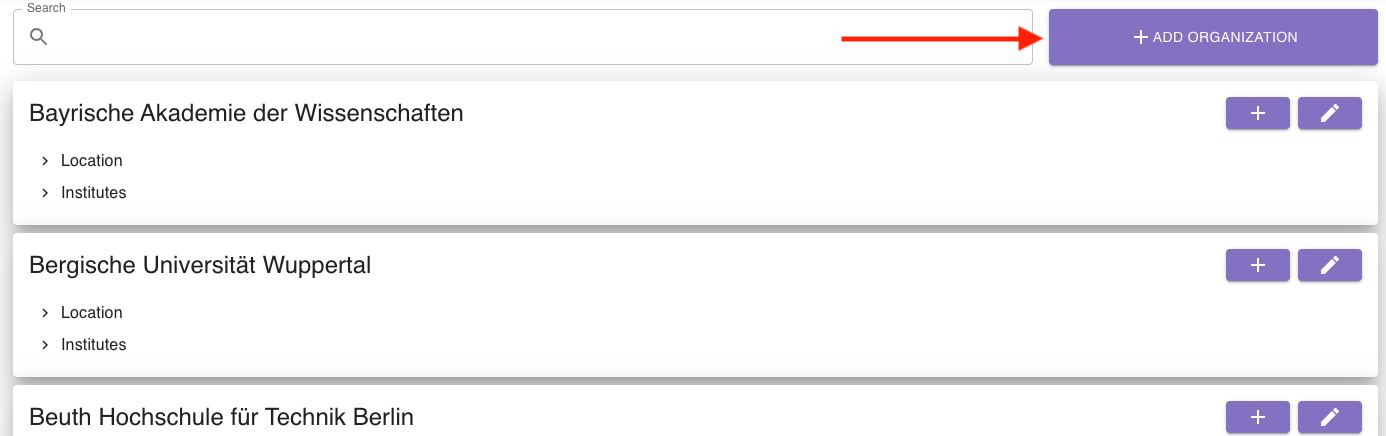
To create a new organization, click on add organization in the top right corner of the affiliation manager:
A dialog will open, where you can enter the organization’s details:
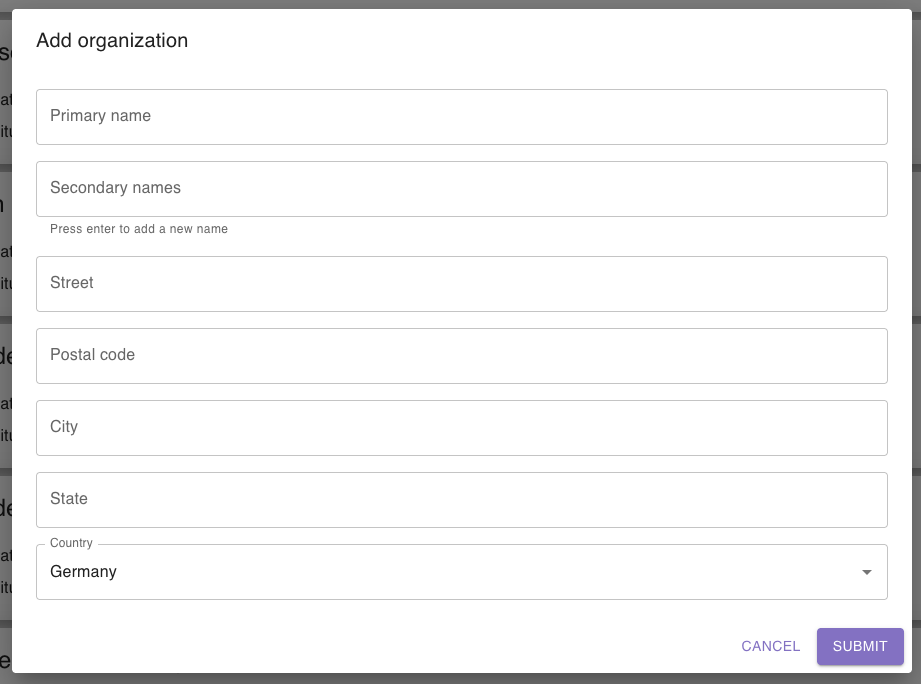
To save the organization, click on submit.
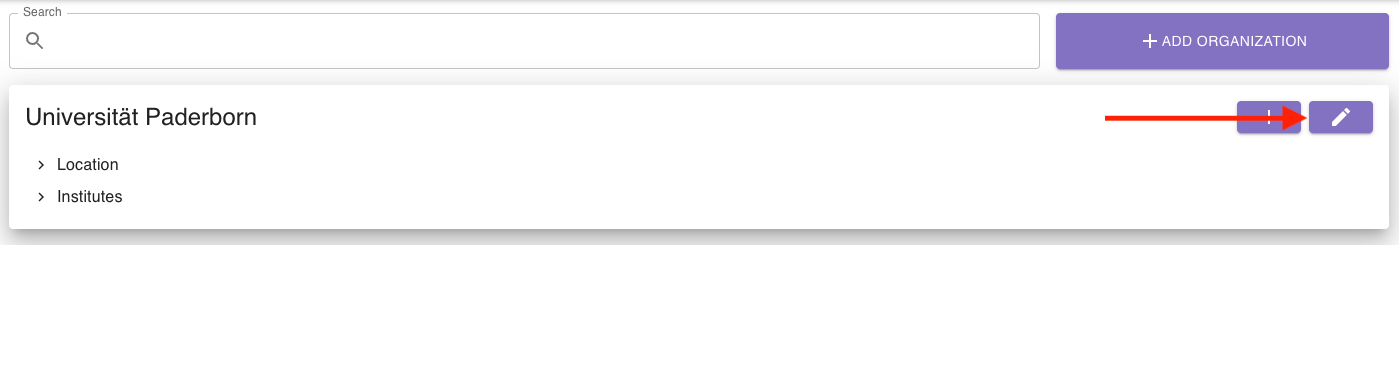
To edit an organization, click the edit button in the top right corner of the organization’s section:
A dialog will open, where you can update the organization’s details:
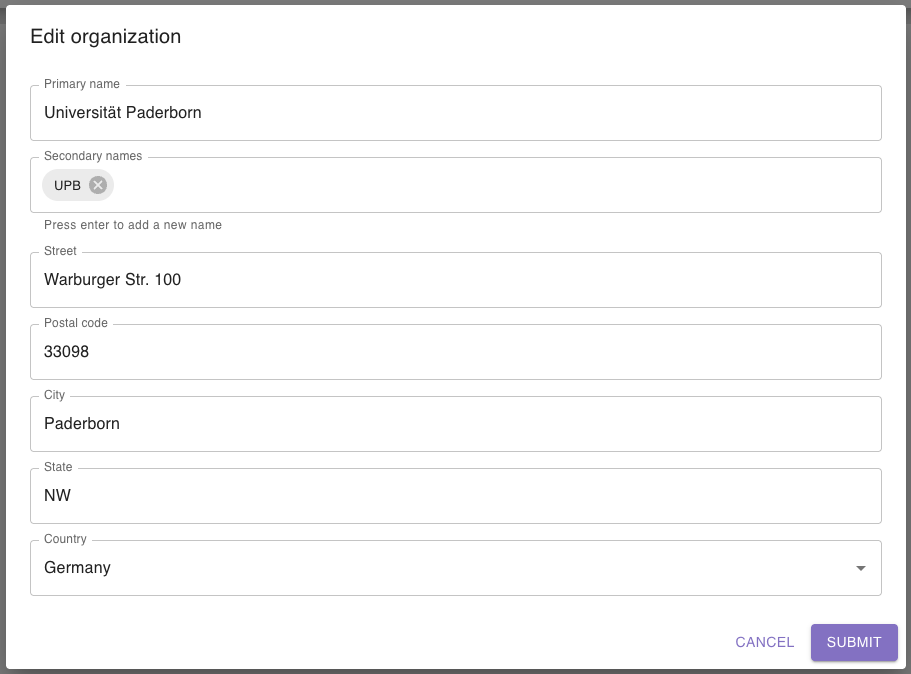
To save your changes, click on submit.
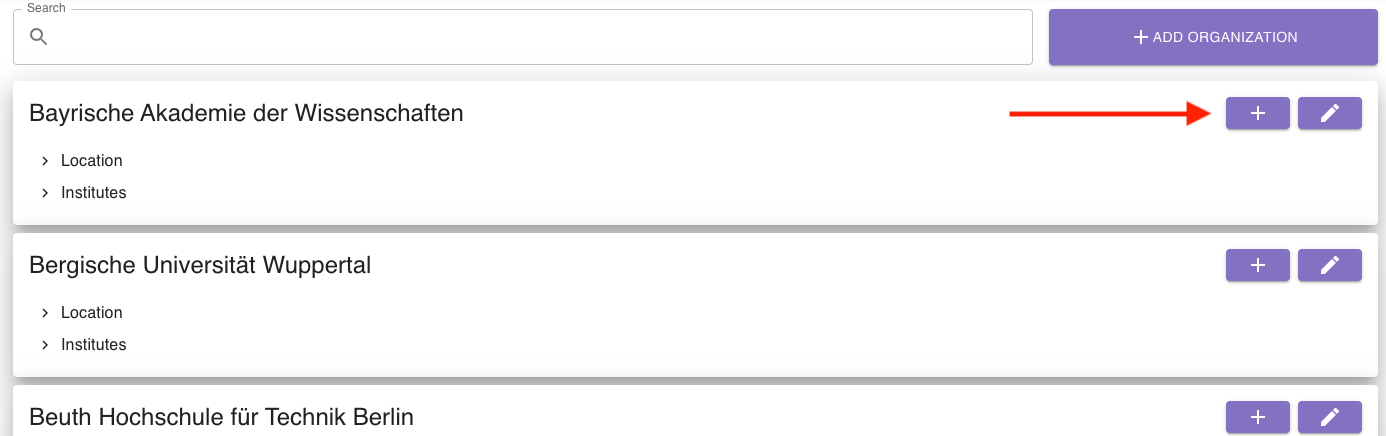
To add a new institute, go to the corresponding organization and click the add button in the top right corner of the organization’s section:
A dialog will open, where you can enter the institute’s details:
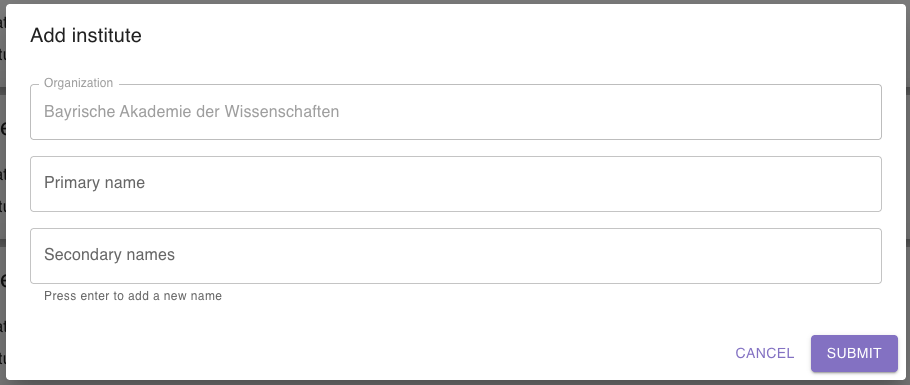
To save the institute, click on submit.
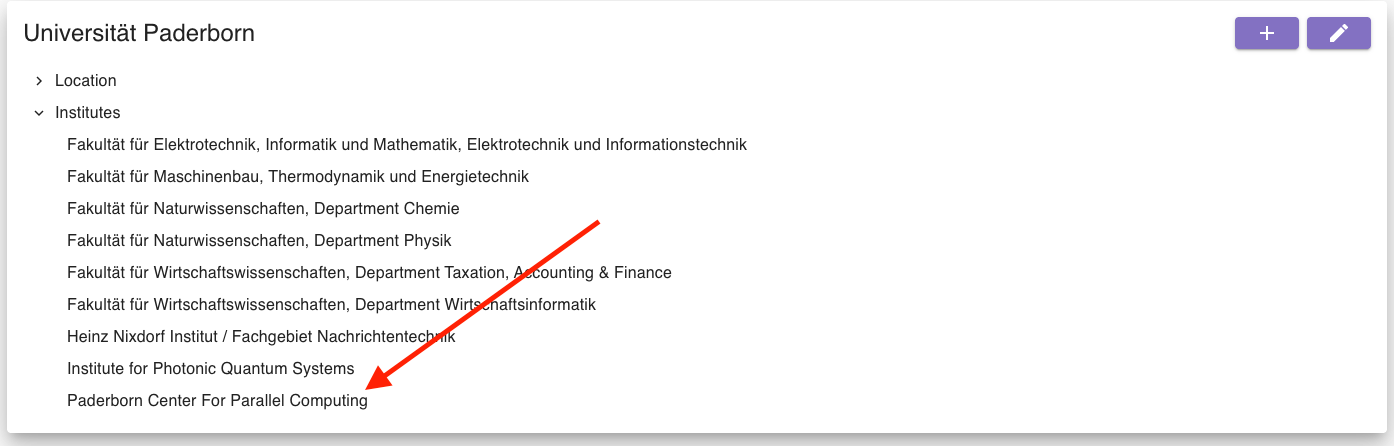
To edit an institute, click on “Institutes” on the organization’s section and then click on the institute you want to edit:
A dialog will open, where you can update the institute’s details:
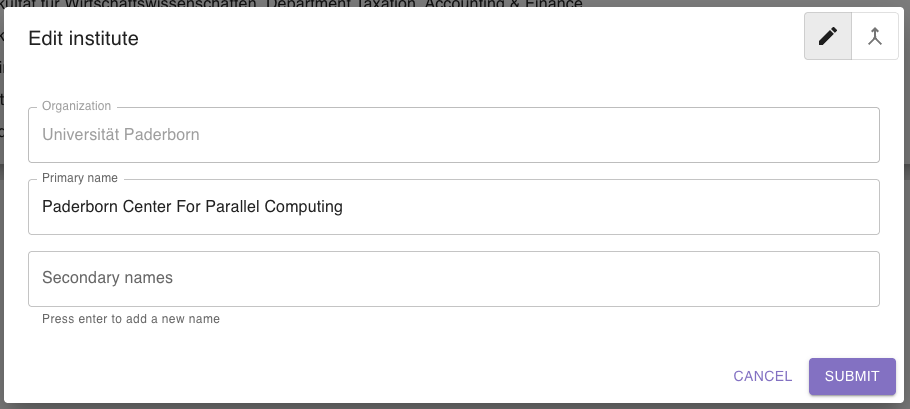
To save your changes, click on submit.
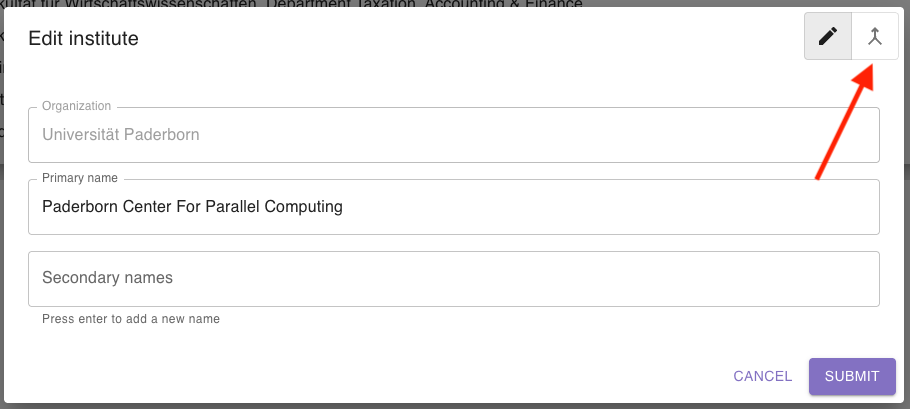
Due to spelling mistakes, multiple proposal systems or other circumstances, it can happen that the same institute exists two or more times with different names. To correct this, you can merge an institute into another one. To do so, go to the institute you want to remove / merge into another institute like you would want to edit it and click the merge button in the top right corner of the dialog:
Another dialog will open, where you can select which institute to merge into:
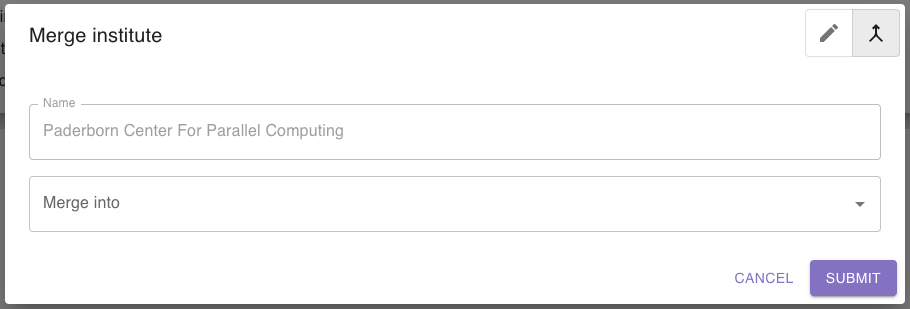
To execute the merge, click on submit.