Restricted functionality
This functionality can only be accessed when having one of the following
roles:
- OWNER
- CLUSTER_ADMIN
Restricted functionality
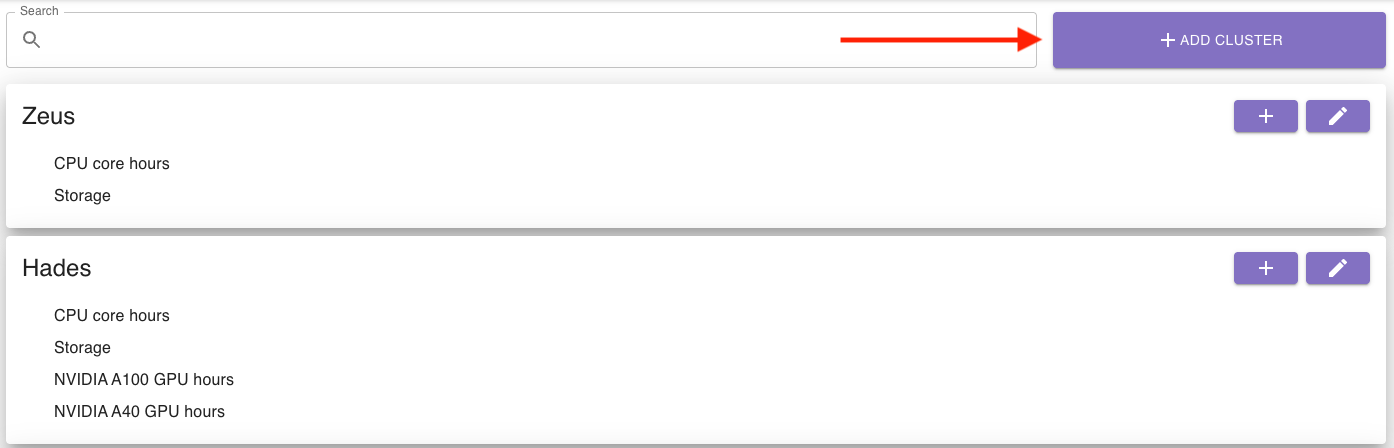
To create a new cluster, click on add cluster in the top right corner of the resource manager:
A dialog will open, where you can enter the cluster’s ID and name:
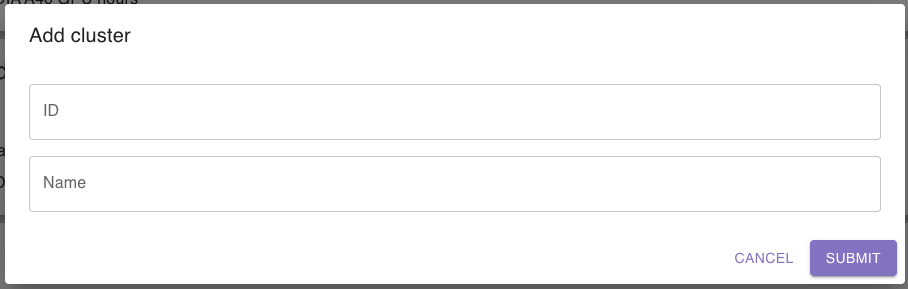
To save the cluster, click on submit.
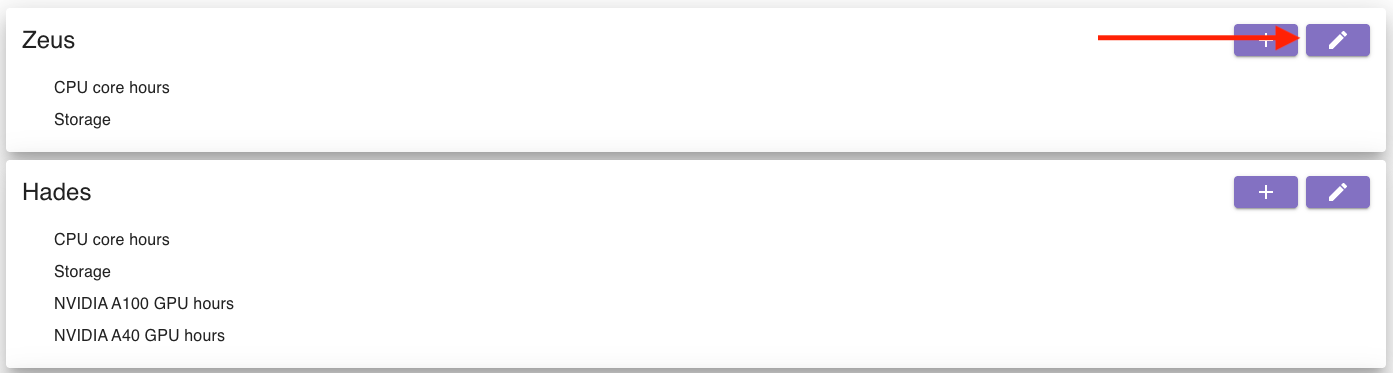
To edit a cluster, click the edit button in the top right corner of the cluster’s section:
A dialog will open, where you can update the cluster’s name:
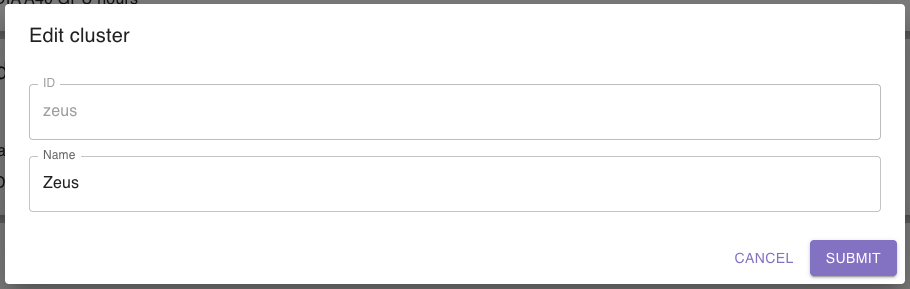
To save your changes, click on submit.
To add a new resource, go to the corresponding cluster and click the add button in the top right corner of the cluster’s section:
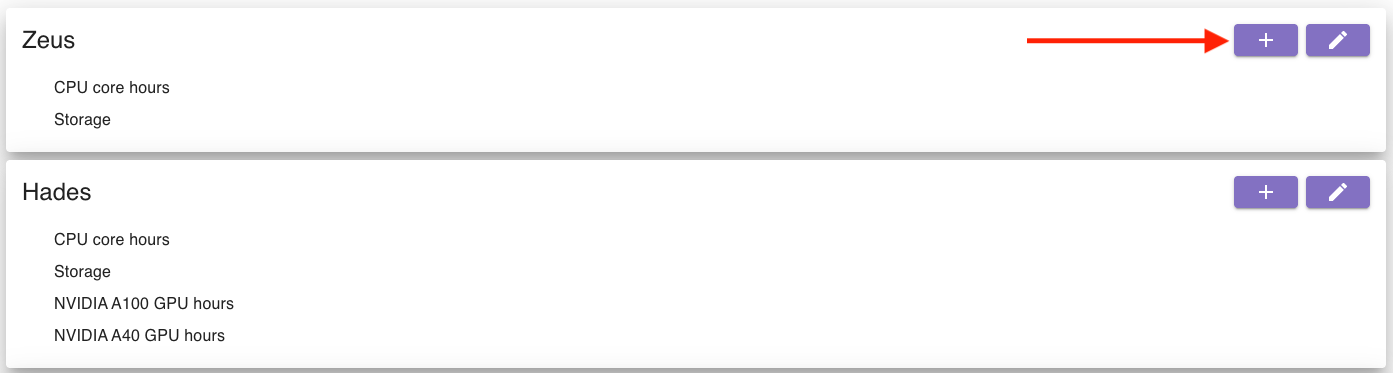
A dialog will open, where you can enter the resource’s details (click here to learn more about the types of resources and their units):
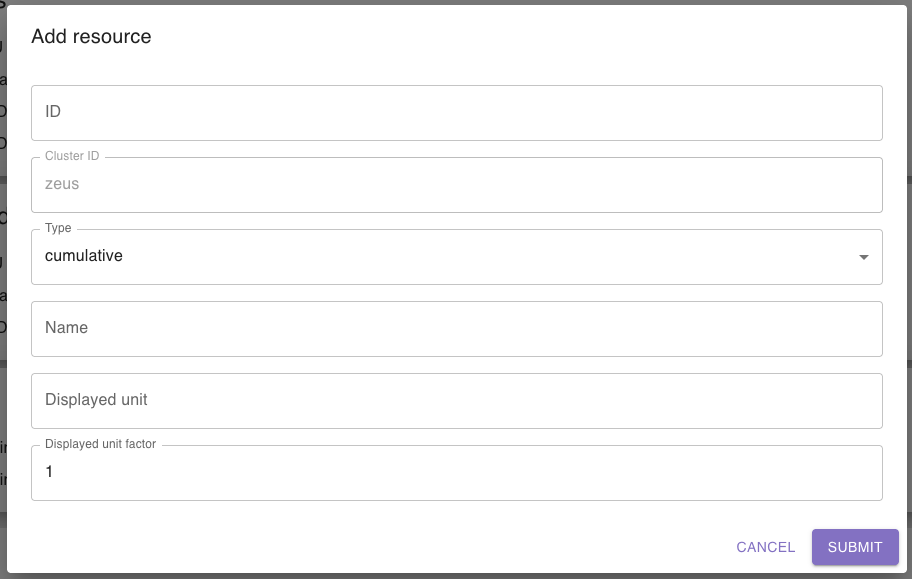
To save the resource, click on submit.
To edit a resource, click on the resource you want to edit:
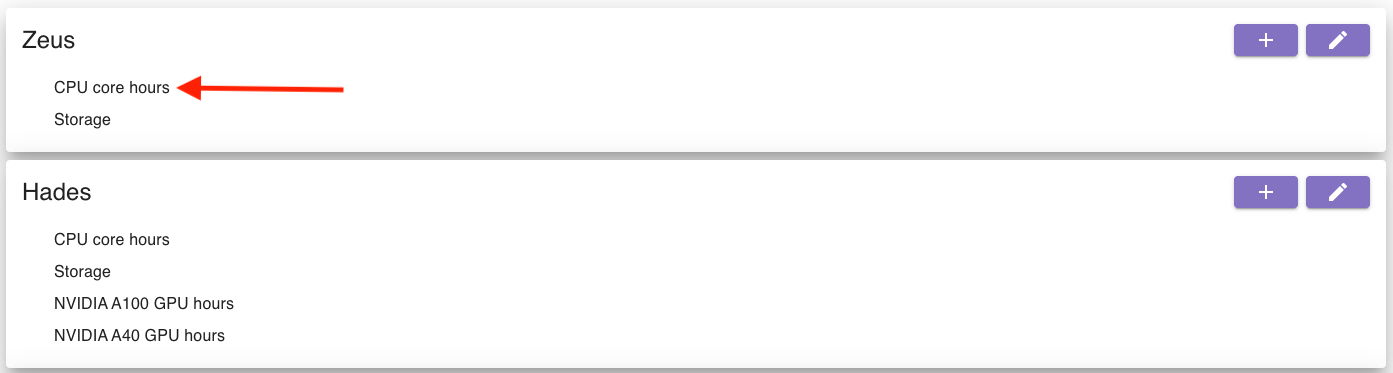
A dialog will open, where you can update the resource’s details:
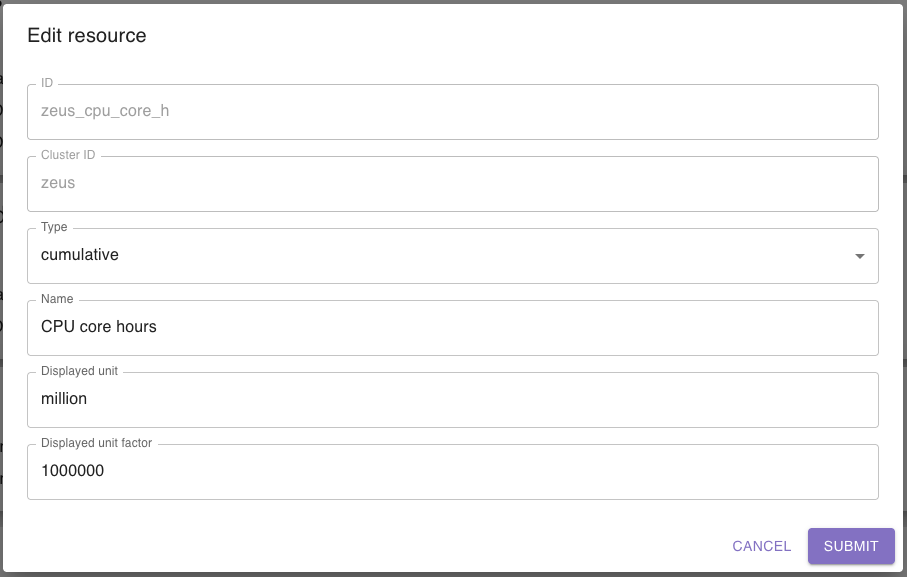
To save your changes, click on submit.
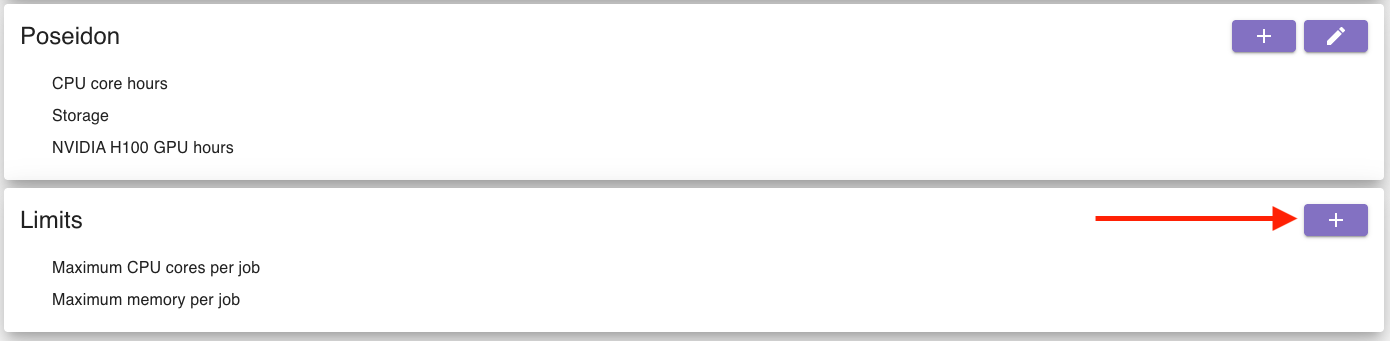
To add a new limit, go to the limit section and click the add button in the top right corner:
A dialog will open, where you can enter the limit’s details:
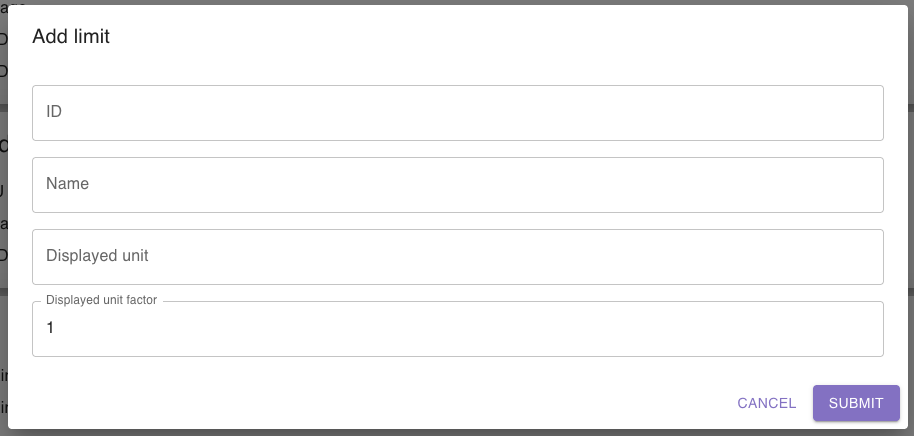
To save the limit, click on submit.
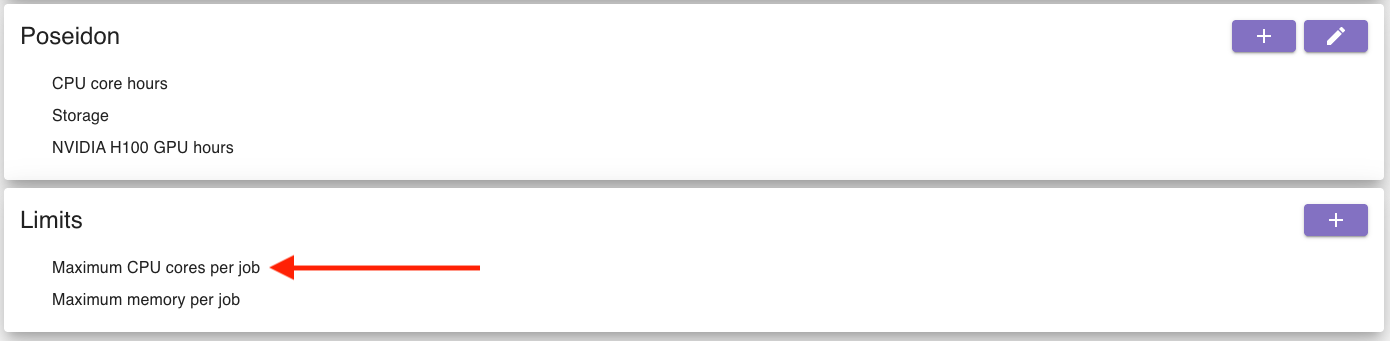
To edit a limit, click on the limit you want to edit:
A dialog will open, where you can update the limit’s details:
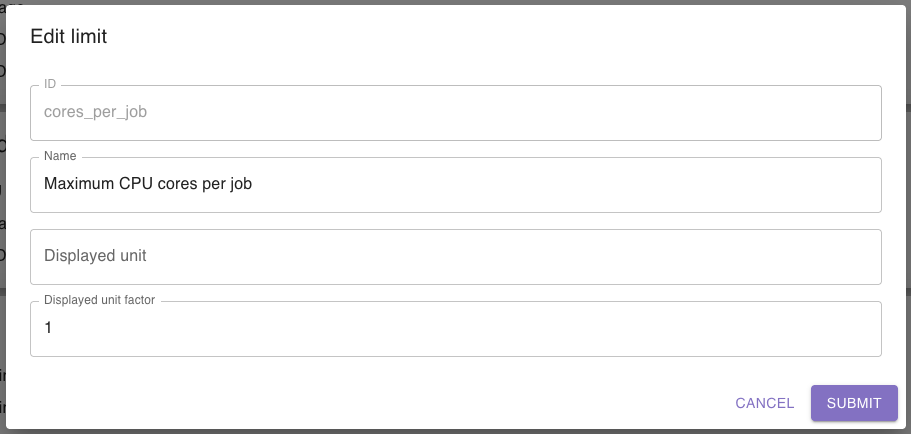
To save your changes, click on submit.