Restricted functionality
This functionality can only be accessed when having one of the following
roles:
- OWNER
Restricted functionality
The “State Machine Manager” is available in the frontend and can be used to create and update state machines.
If you want to learn more about state machines and their functionality have a look here.
The graphical representation of a state machine is done with mermaid.
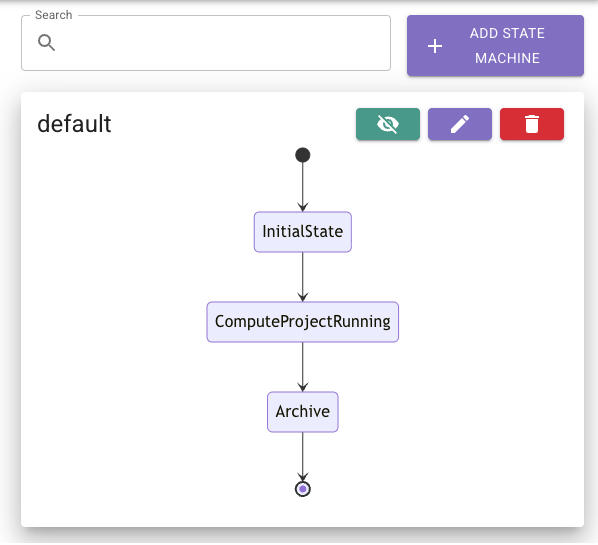
The following project states are already available by default:
To build more customized project states have a look here: Add a new state
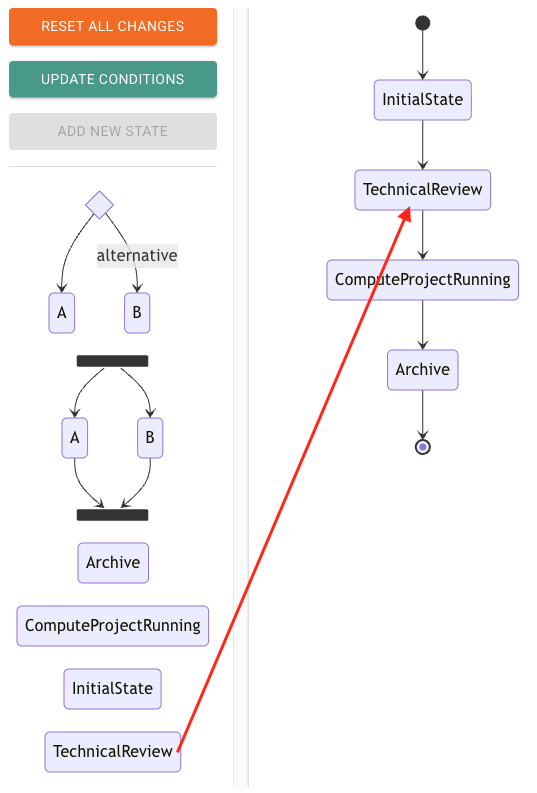
Lets add our custom state TechnicalReview (view the tutorial) after the InitialState.
Edit state machine
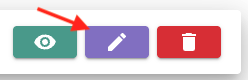
Edit the state machine by clicking on the pen icon.
Prepare state machine
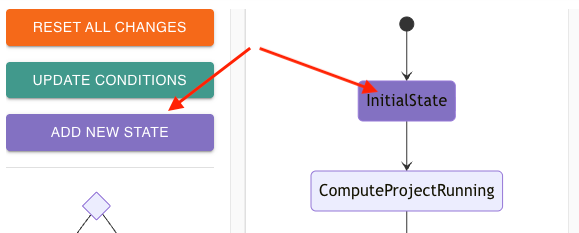
Click on the state where you want to insert another state below. Then click on the add new state button.
Drag and drop
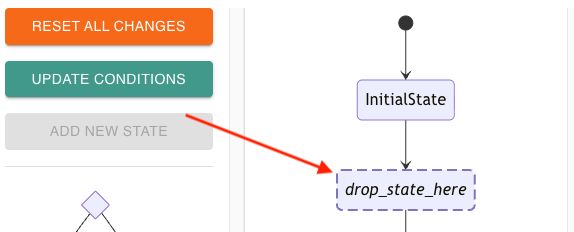
Now you can use the drag & drop functionality to add a new state to the state machine:
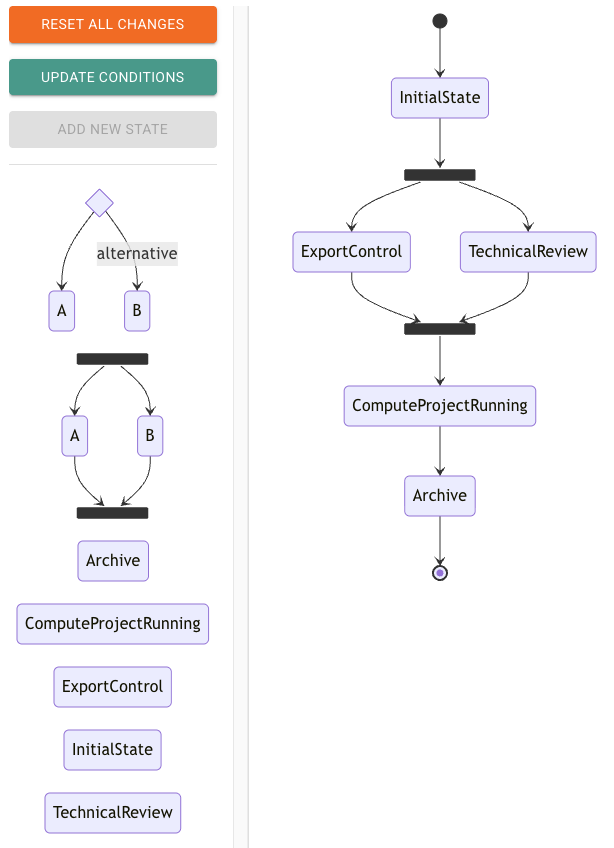
A project can be in several states at the same time. To i.e. enable TechnicalReview and ExportControl for a project to run simultaneously, the state machine can also be configured as follows:
When a state fires an event, this event can carry one or more values. You can define conditions between state transitions, so that these transitions will only be executed when the firing event holds the value required. Learn more about how events work here.
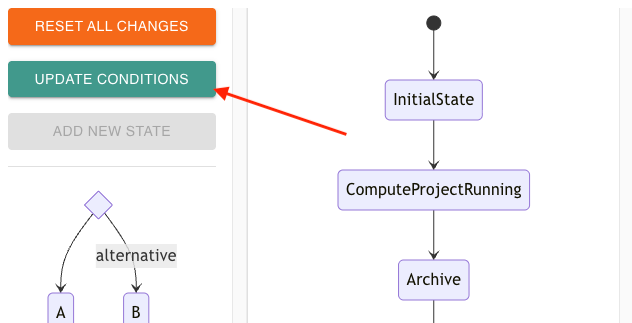
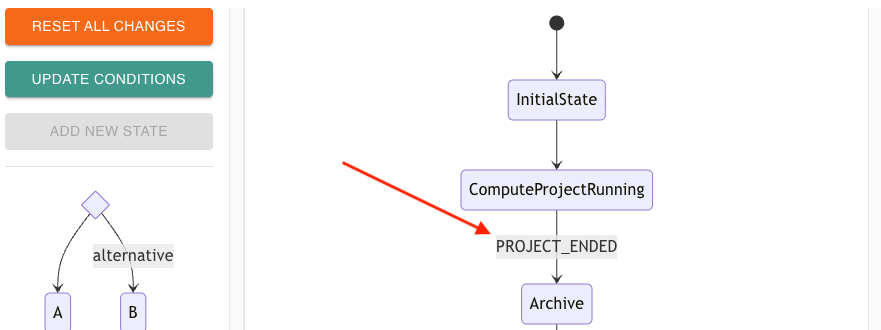
To enable or update these conditions on state transitions, click on the update conditions button:
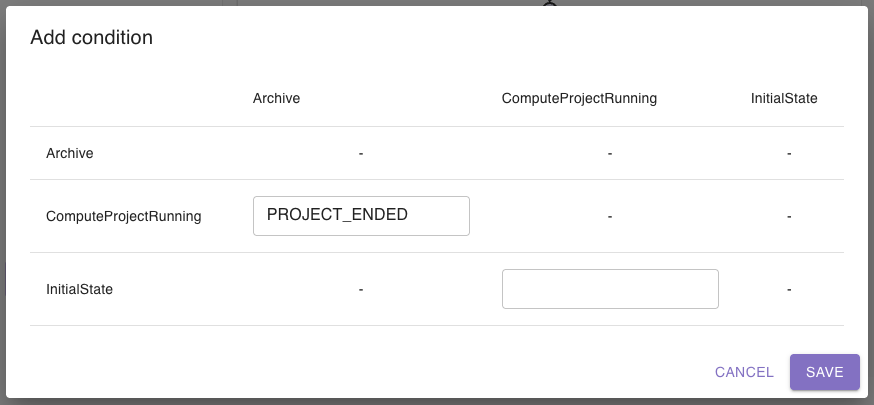
A dialog will open. On the left side, you see the origin states; on the top row, you see the target states. In this
example, the condition when going from state ComputeProjectRunning to state Archive is, that the corresponding event
fires with the value PROJECT_ENDED:
Click on save to add the changes to the state machine:
By clicking on the test button PERSEUS will send the created state machine to the server, validates it and returns the result.
If both state machines are looking identical, the generated state machine has been created successfully. Save it by clicking on the submit button.