Compute proposals
A compute proposal is your request to the HPC center for compute time on one or more clusters. The Compute proposals module guides you through filling in every required piece of information and submitting the proposal for review.
Proposal list
Section titled “Proposal list”The My compute proposals page lists your proposals in a single column: the proposals you have already submitted first, followed by the drafts you have created but not yet submitted.
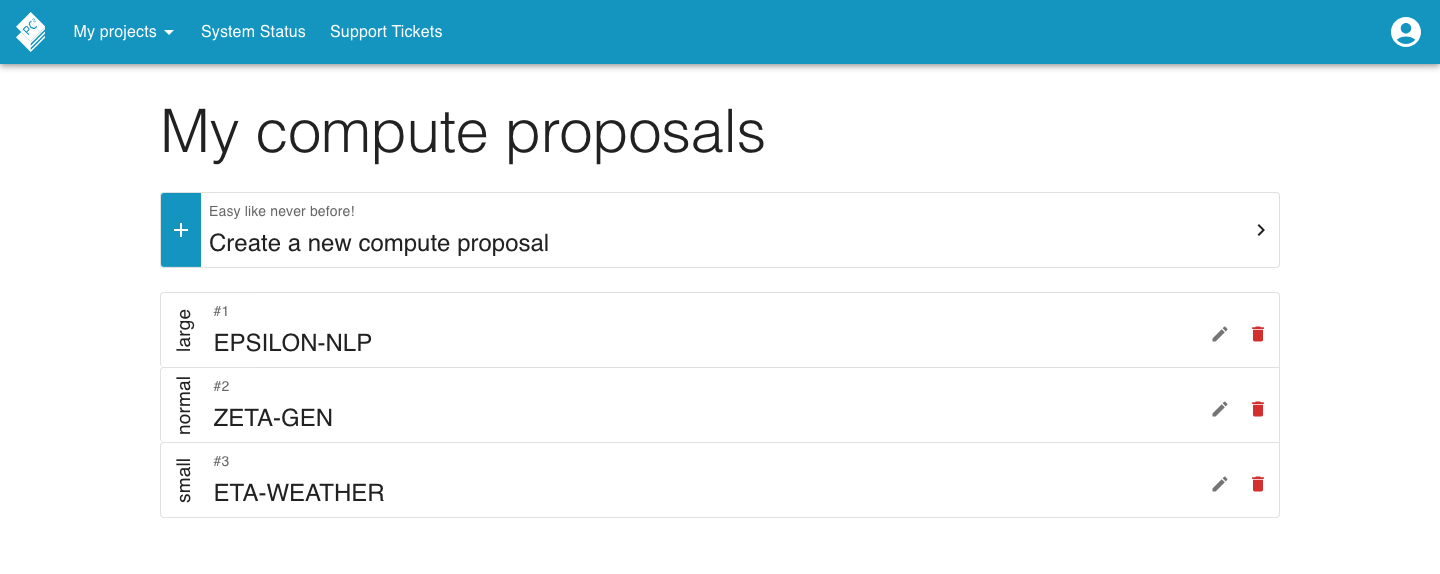
Click a draft to keep editing it, or a submitted proposal to view its read-only details while it is under review.
To start a new proposal, click the prominent Create a new compute
proposal button at the top of the page.
Creating a proposal
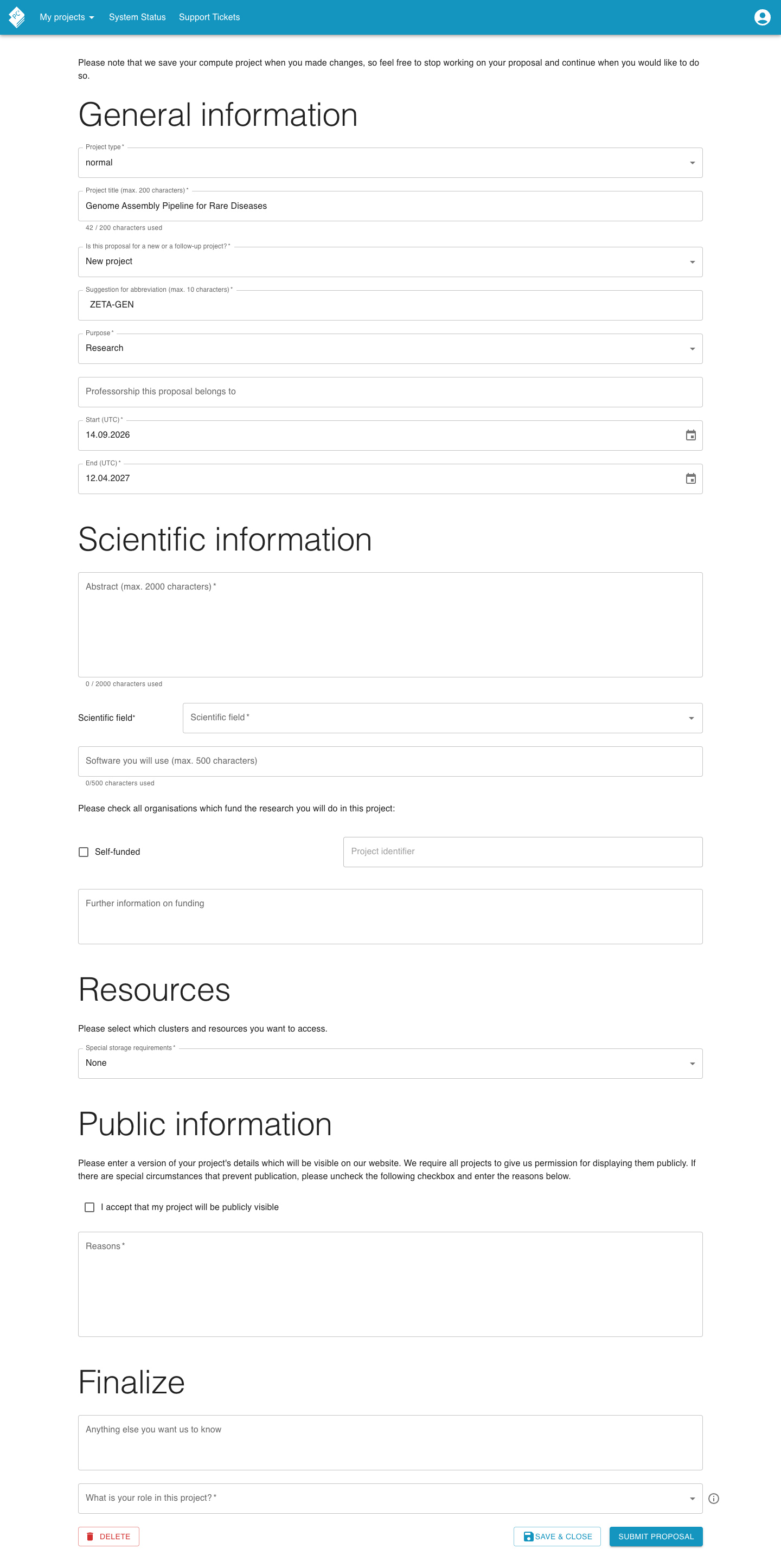
Section titled “Creating a proposal”A new proposal opens in an editor split into five sections. The editor autosaves as you work, so you can stop and continue at any time; the proposal is only sent for review once you submit it explicitly.
General information
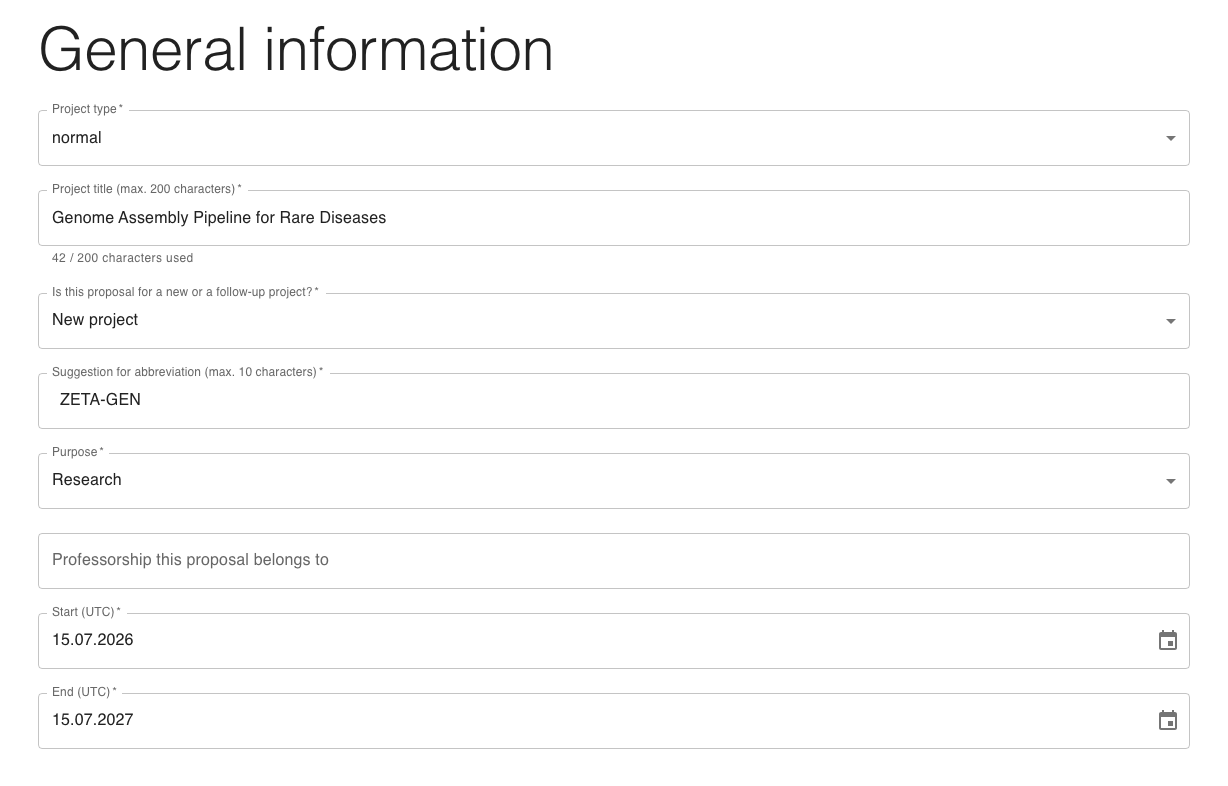
Section titled “General information”Provide the basic details about the project: title, abbreviation, project type (the available types are configured by the center, for example small, normal, or large), purpose, start and end date, the professorship the project belongs to, and, if applicable, the predecessor proposal it follows up on.
Scientific information
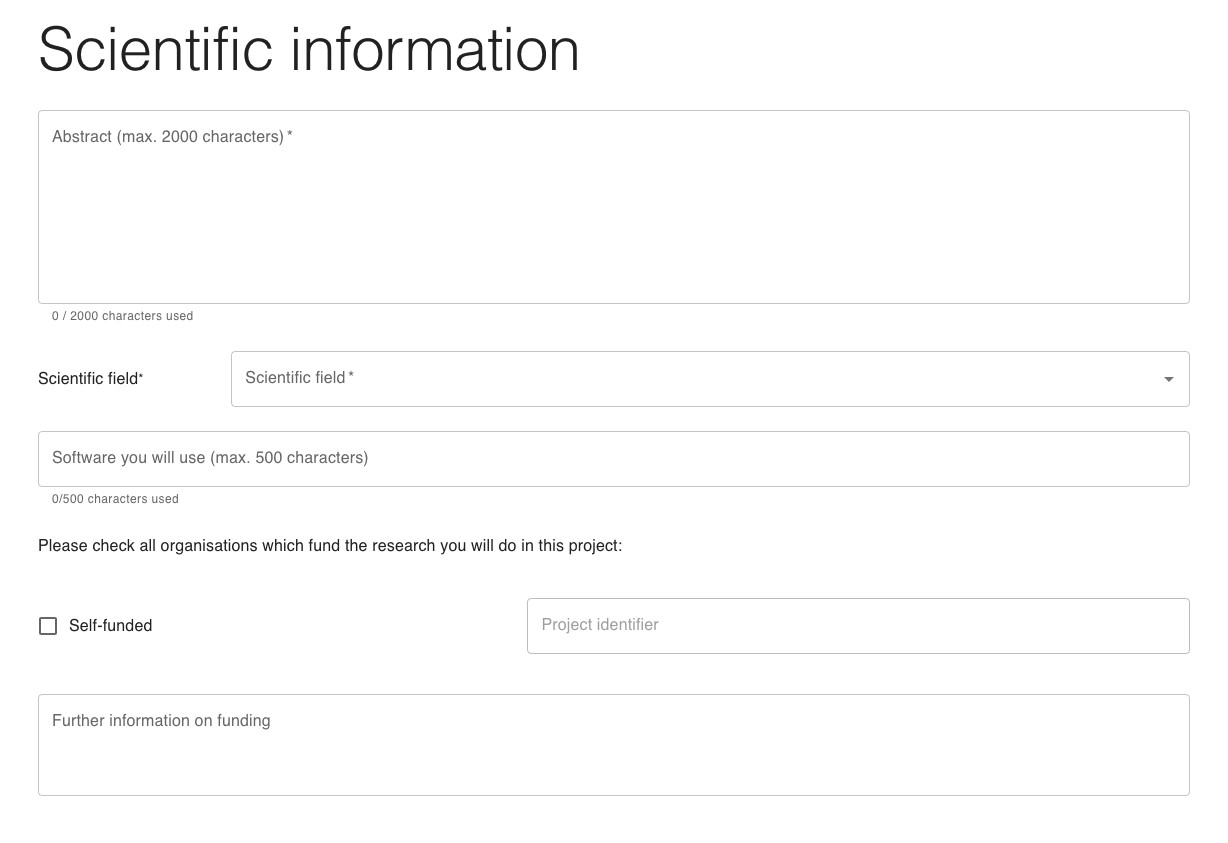
Section titled “Scientific information”Describe what the project is scientifically about, list the scientific fields it touches, the software stack it relies on, and any funding sources backing it.
Resources
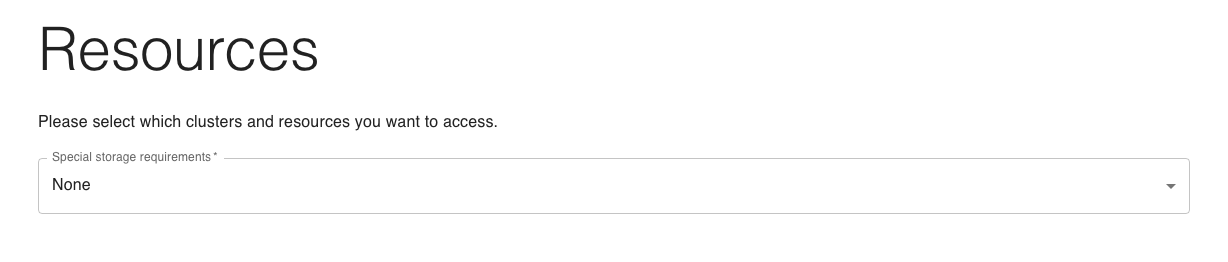
Section titled “Resources”Pick the clusters you want compute time on and enter how much of each resource you need. The Special storage requirements dropdown lets you flag whether the project has special storage needs, the options are None or Special privacy / confidentiality requirements.
Public information
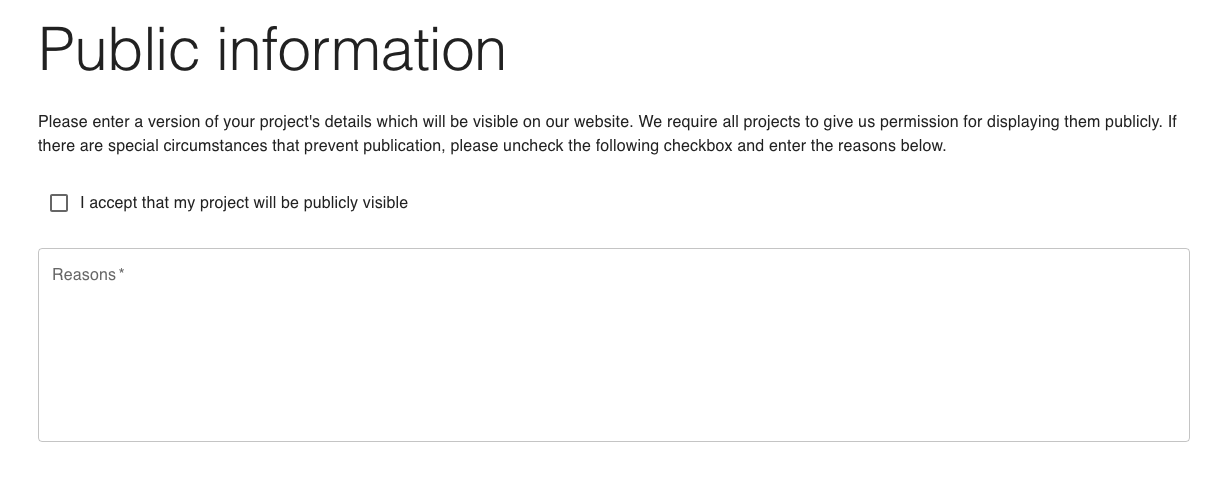
Section titled “Public information”This section asks for a description, links, and a visibility flag the center may publish on its website. Fields here are written in plain language and aimed at a general audience.
Finalize
Section titled “Finalize”The Finalize section is where you submit, save, or delete the proposal. Pick the role you take in the proposal: Principal Investigator, Person of Contact, or Principal Investigator & Person of Contact. If you select Principal Investigator or Principal Investigator & Person of Contact, you must also confirm a set of required checkboxes (for example that you agree to the center’s terms) before submitting.

Use Save & Close to keep your draft and return to the
list. To hand the proposal in, use Submit proposal, if
you selected the Person of Contact role the button instead reads
Send proposal to PI, since the principal investigator
has to submit it. Delete removes the proposal after a
confirmation dialog.
Claiming a proposal
Section titled “Claiming a proposal”When someone else submits a proposal that lists you as principal investigator or person of contact, you receive a claim link. Opening it lets Andromeda verify the link automatically, there is no extra confirmation step.
What happens on success depends on your role:
- As principal investigator, the proposal is attached to your account and opens directly in the editor so you can review and submit it.
- As person of contact, you simply get a confirmation that you have been added (“You have been added as person of contact.”); the editor does not open.
If the link is invalid, expired, or has already been used, Andromeda shows an error instead.

Once claimed, the proposal appears in your proposal list.