Login
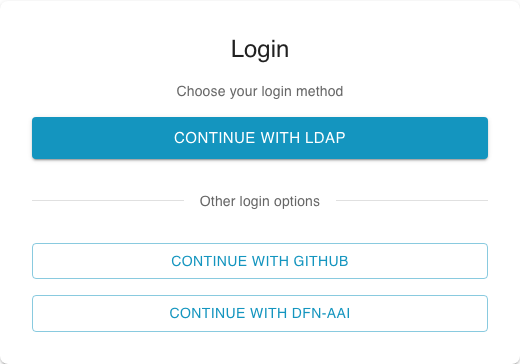
Andromeda shows project information only after you sign in. On the login page, you will see the sign-in options that are available for your center. This can include LDAP or another login option, such as your university account.
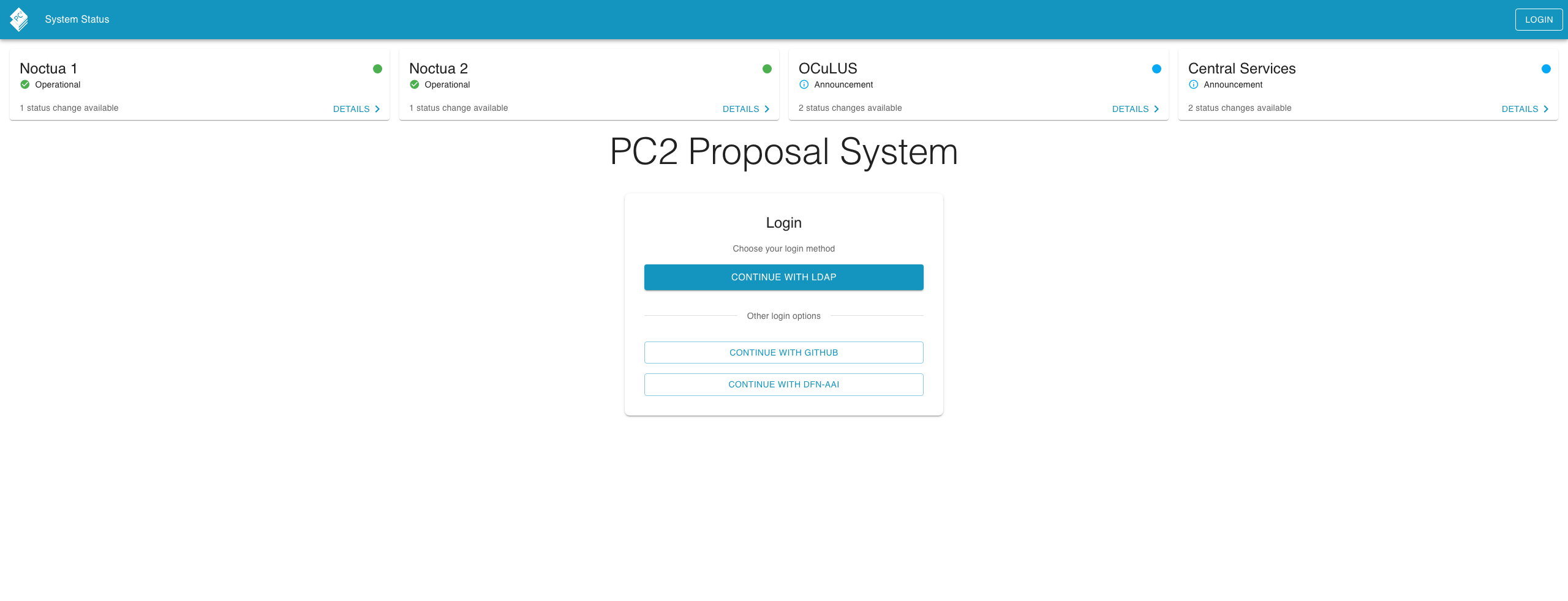
The boxes above the login form are the service status bar that the landing page shows even before you sign in. They give you a quick overview of the center’s services. See Home & navigation and the System status page for details.
If LDAP is available for your center, it appears as the main sign-in button at the top of the page. Click the LDAP button and sign in with your center username and password.
External identity providers
Section titled “External identity providers”Below the LDAP button, you can see the other sign-in options available for your center. Select the option you want to use, for example GitHub or DFN-AAI. Andromeda will open the sign-in page for that service. After you sign in there, you will be sent back to Andromeda.