Support tickets
The Support tickets module is where you report a problem to the center’s HPC support team. Instead of writing a free-form email, you fill in a short form, which can be linked to the right project, cluster, service, and job, so the support team has the context it needs to help you quickly.
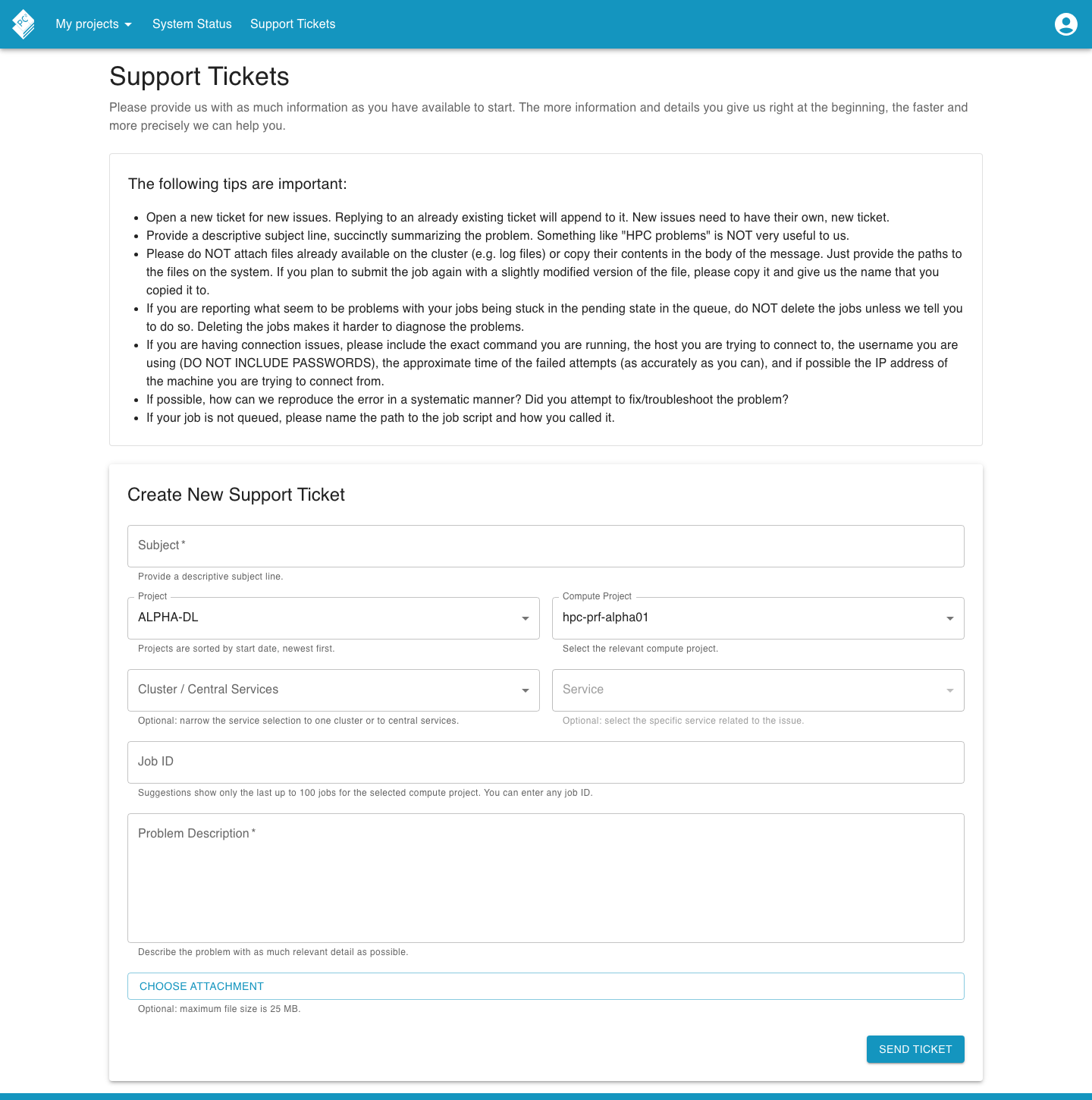
The page opens with a short set of tips that explain how to write a useful ticket. They are worth reading before you submit.
Creating a ticket
Section titled “Creating a ticket”Fill in the Create new support ticket form. Only the subject and the problem description are required, every other field is optional context that helps the support team route and understand your request.
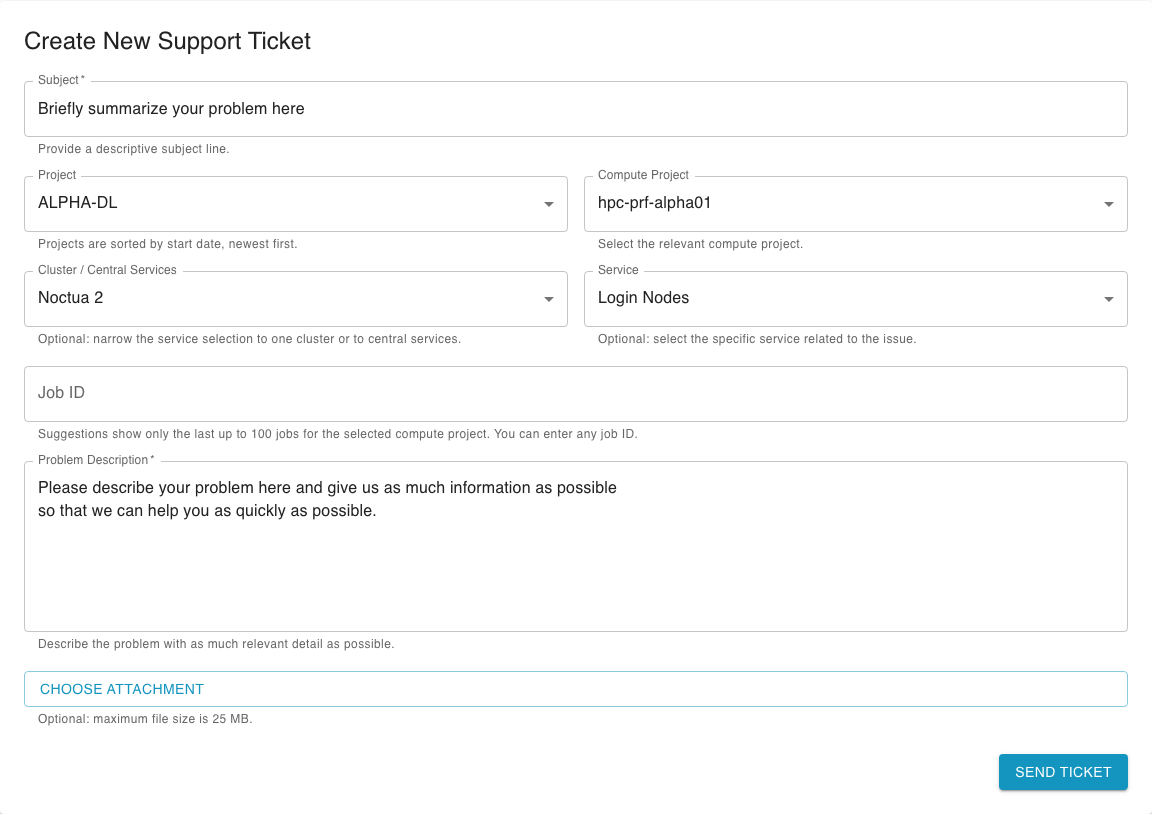
- Subject (required), a short, descriptive summary of the problem.
- Project, the project the issue relates to. The list shows your projects sorted by start date, newest first, and is pre-selected with your most recent one. Leave it as is if the request is not project-specific.
- Compute project, the compute project under the selected project. It is filled in automatically from your project choice.
- Cluster / Central services, optionally narrow things down to one cluster or to the center’s central services.
- Service, once you pick a cluster or central services, you can point to the specific affected service. It stays disabled until a group is chosen.
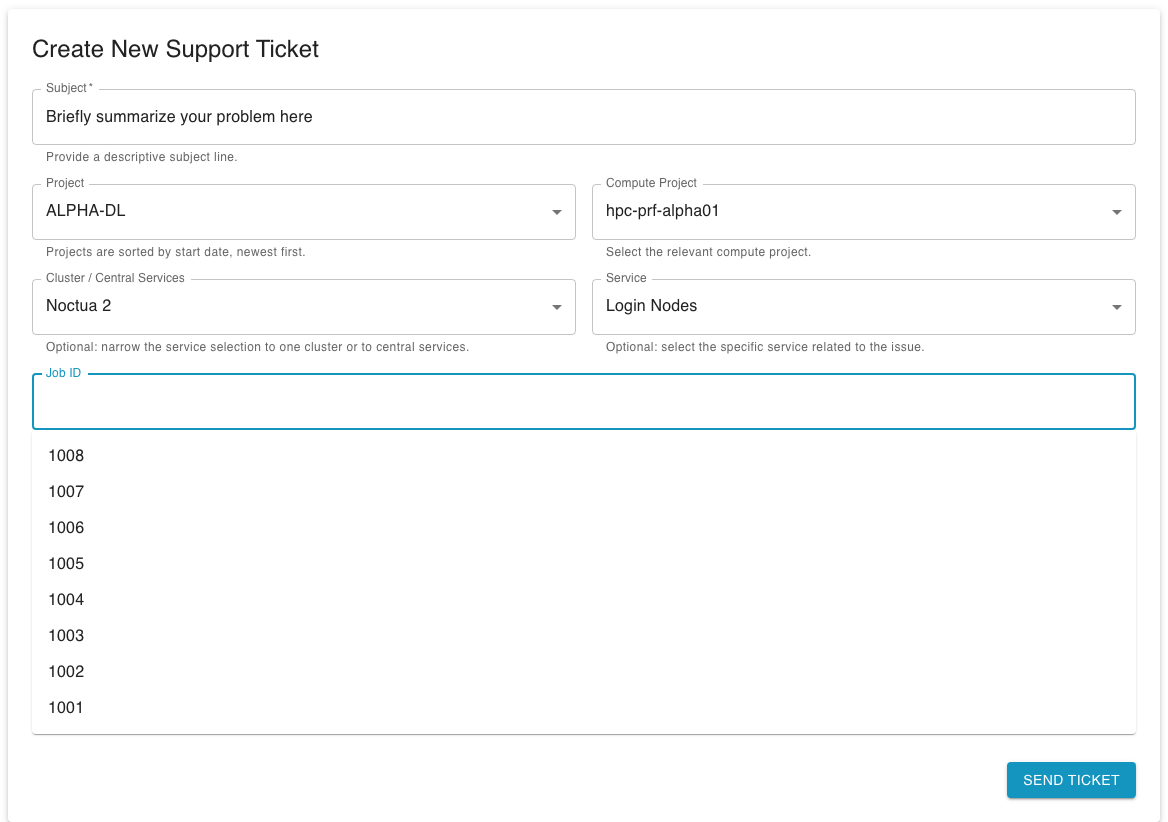
- Job ID, the job your request is about. You can type any job ID; the field also suggests your most recent jobs for the selected compute project.
- Problem description (required), describe the problem with as much relevant detail as possible.
- Attachment, optionally attach a single file up to 25 MB (for example a screenshot). Remember not to attach files that already exist on the cluster.
Job ID suggestions
Section titled “Job ID suggestions”When you focus the Job ID field, Andromeda suggests the most recent jobs for the compute project you selected. Picking a suggestion is the easiest way to reference the right job, but you can always type any job ID by hand.
Submitting
Section titled “Submitting”When the form is complete, click Send ticket. Andromeda
confirms that the ticket was created and tells you that a confirmation email is
on its way, usually within a few minutes.

From there the conversation continues by email: reply to the confirmation to add more information to the same ticket.