Dashboard
The Dashboard gives users a personal overview of useful information. You can add widgets, arrange them to suit your workflow, and remove widgets you no longer need.

Available widgets
Section titled “Available widgets”The following widgets are currently available:
- Digital Clock — displays the current time in digital format.
- Analog Clock — displays the current time as an analog clock.
- Service Requests — shows open service requests and lets authorized users review them.
The Service Requests widget is only available to users with access to the Service Catalog.
Add a widget
Section titled “Add a widget”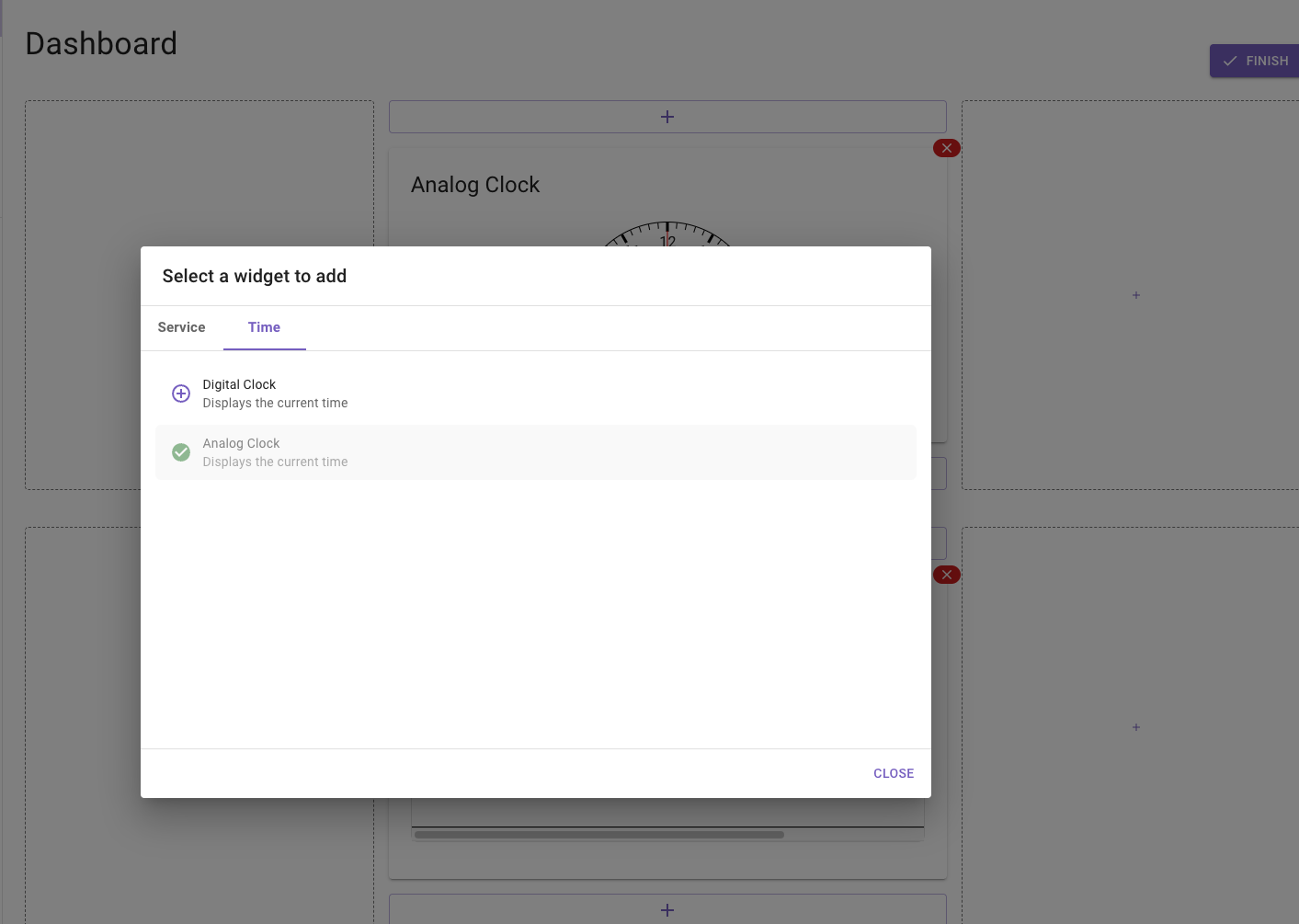
- Open the Options menu.
- Click Edit dashboard.
- Click a + button where you want to place a widget.
- Select a widget from the list.
- Click Finish to save the layout.
A widget can only be added once. Widgets already on the dashboard are shown as unavailable in the selection list.
Arrange widgets
Section titled “Arrange widgets”While editing, you can change the order of widgets.
- On larger screens, drag and drop a widget to a new position.
- On smaller screens, use the arrow buttons to move a widget.
- Use the + buttons between widgets or rows to add a widget in the required position.

Remove a widget
Section titled “Remove a widget”- Open Options and select Edit dashboard.
- Click the X on the widget you want to remove.
- Click Finish.
At least one widget must remain on the dashboard.
Reset the dashboard
Section titled “Reset the dashboard”To return to the standard layout:
- Open the Options menu.
- Click Reset to default.
This removes your current dashboard arrangement and restores the default widget layout.